Your watermark is your logo, added to web-size photos when you download them from your galleries. Full-size and print files never carry it.
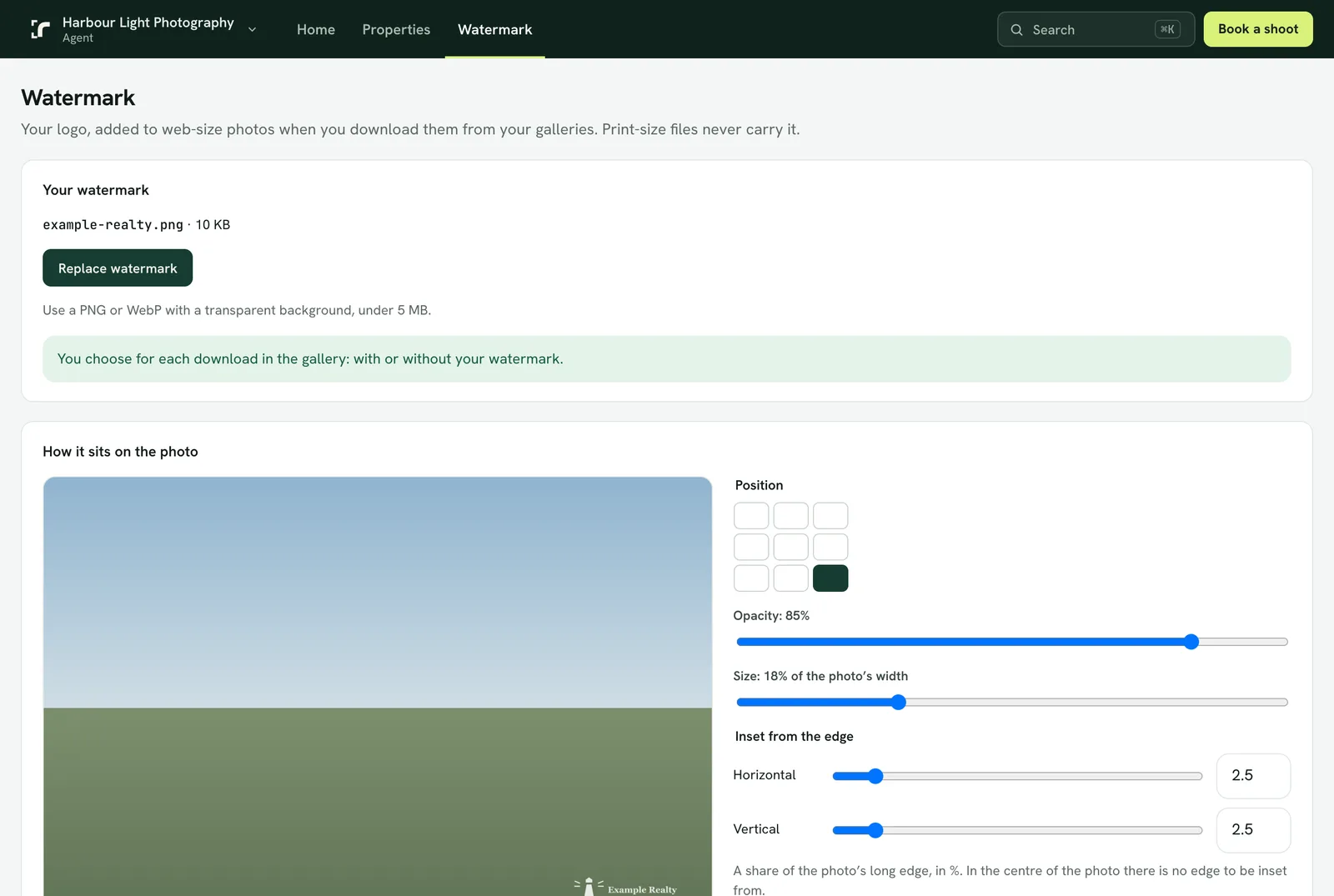
Set it up
- Open Watermark in the portal (in the app, it is under Account).
- Upload a PNG or WebP with a transparent background, under 5 MB.
- Choose how it sits on the photo: one of nine positions, its size (5 to 50% of the photo's long edge) and its opacity (10 to 100%).
- Inset from the edge moves it in from the side and from the top or bottom, each 0 to 25%. The preview shows your own logo as you change things.
Using it
- In a gallery, choose with or without your watermark each time you download web-size photos.
- Your photography company can turn your watermark on for every web-size download. The Watermark page says when they have.
- Changes apply to photos you download from then on.
Admins
Turn an agent's watermark on, or set its style for them, from the agent's row under Clients. There is one watermark per agent, and none for the company itself.