None of these is required: you can run every job with invoices marked paid by hand. Connect the ones you use under Settings → Integrations.
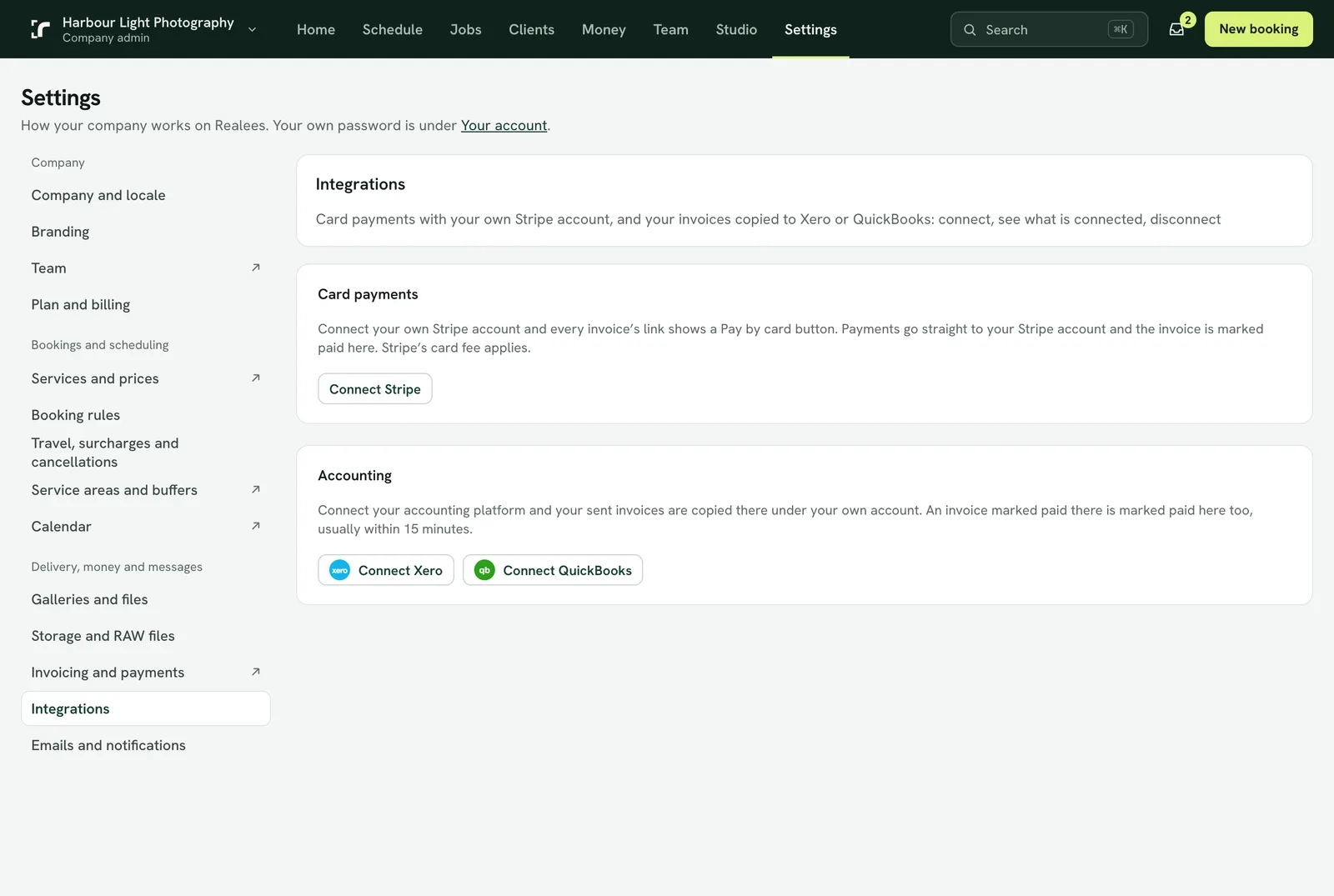
Card payments with your own Stripe account
- Press Connect under Card payments and sign in to Stripe, or create an account there.
- Every invoice's link then shows Pay by card. The money goes straight to your Stripe account; Stripe's card fee applies and Realees adds none.
- A paid card marks the invoice paid here, within 15 minutes or as soon as you open the invoice.
- Each invoice has one card page at a time. Voiding, editing or marking an invoice paid by hand closes its card page first, so nobody pays an old total.
- With Stripe connected you can also take payment when a booking is requested on your booking page. See "Your public booking page and its embed code".
Xero or QuickBooks
- Connect one of them (one at a time) and sign in under your own account.
- On Xero's page, choose the organisation this company invoices from. One that Xero shows as already connected can't be unticked there; Realees works out which one is yours and shows its name under Settings → Integrations once connected. If the name is wrong, disconnect and connect again.
- Each invoice you send is copied there, and updated if you edit it. A payment taken in Realees is recorded against the copy, and an invoice marked paid there is marked paid here, usually within 15 minutes.
- If a copy is refused, the invoice says why, with Try again.
- Refunds aren't copied: record the credit note in your accounting, then tick the refund off on the invoice. Until then it waits under what needs attention.
- Invoices sent before you connected are copied only while they are unpaid.
RAW files in your own Dropbox
- Press Connect Dropbox and sign in to your company's Dropbox. Realees is given its own folder there (Apps → Realees), not the rest of your Dropbox.
- From then on, the RAW files uploaded to your jobs go straight into that folder, one folder a job, named by the property's street address and the job number ("12 Smith Street (RE-1042)"), with Photos, Video and Drone inside. Files keep the names your camera gave them. They are not kept in Realees, so they don't count towards your Realees storage.
- To send a job's RAW files to an editor, open the job, choose RAW files for an outside editor, then Get the Dropbox folder link. Anyone with the link can see and download the folder until you turn the link off in Dropbox. Single files also download from the job as before.
- Your Dropbox needs room for the files: an upload that won't fit is refused, with how much is free and how much is needed.
- Your Dropbox follows what happens in Realees. Delete a RAW file in Realees, or delete a job's RAW files, and it moves out of the job's folder into Deleted from Realees in your Dropbox, so editors with the folder link no longer see it. Restore it within 60 days and it moves back. After the 60 days it is deleted from your Dropbox too, into Dropbox's own deleted files.
- Replacing a RAW file does the same to the old one: the new file goes into the job's folder and the old one moves to Deleted from Realees.
- The setting that deletes RAW files a set time after delivery covers the ones in your Dropbox too. Choose a longer time, or never, to keep them longer.
- Realees only moves or deletes files in its own folder (Apps → Realees), never anything else in your Dropbox. If your Dropbox isn't connected at the time, it catches up once it is.
- If you rename or move a file inside the Realees folder, Realees still finds it. If you delete it there or move it out of that folder, the job says it is no longer in your Dropbox.
- Finished photos, video and documents are always kept in Realees: the gallery and AI Studio are made from them.
- Disconnecting deletes nothing in Dropbox. RAW files already there can't be opened from Realees until the same Dropbox account is connected again, and new RAW files are kept in Realees storage. The same happens if Dropbox stops accepting the connection, until you connect it again.
Not the same as your Realees plan
The card that pays for your Realees plan is under Settings → Plan and billing.