A booking is a property, who it is for, the services, and a time. It can come from the console, the app, or your public booking page.
Admins
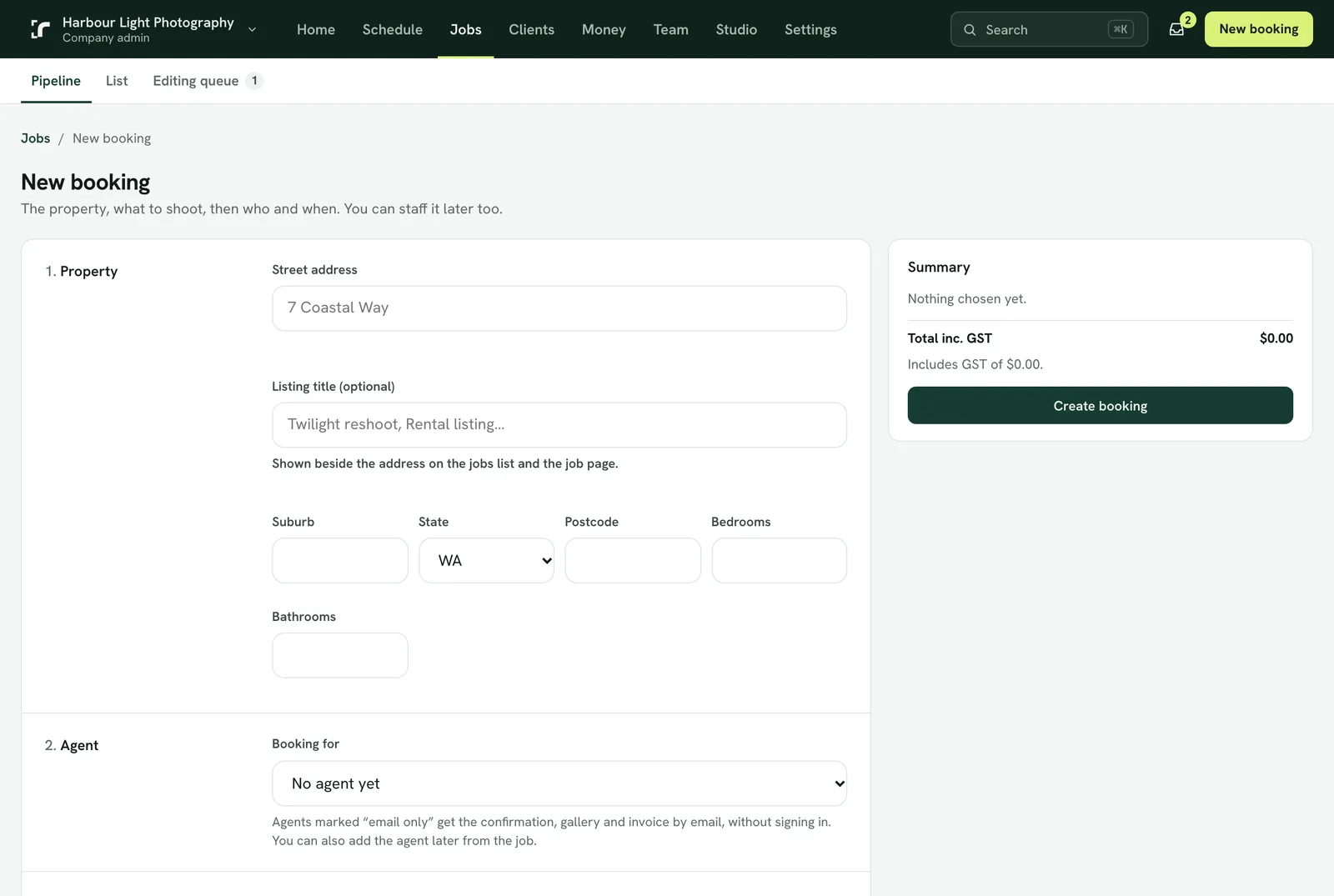
- Press New booking in the console, or in the app. You can book before the agent has joined and set the agent later from the job.
- The form shows the chosen client's prices, the area's suggested photographer, and Next free shoot with one button to take it. Click an empty time on the Calendar to start a booking at that time.
- A photographer you assign is asked to accept. If you assign yourself, the shoot is scheduled straight away.
- No on-site visit (admins only, in the console) makes an editing-only job: no photographer, no shoot time, no travel or weekend charge. Upload the client's photos on the job and it goes straight to editing, then delivery and the invoice as usual. If there are no files to upload (the editor already has them), choose Send to editing without files.
Agents
- Agents use Book a shoot in the portal or the app. Depending on your booking rules they ask for a time, or pick one of the free times you offer.
- They see your prices, or their own if you gave them a price list, with tax shown, and what cancelling late would cost if you charge for it.
The address
Start typing and choose the address from the suggestions, or use "Can't find the address? Drop a pin on the map". A booking needs one or the other, so the property has an exact place on the map for travel charges, driving times and service areas. You can still add a unit number after choosing.
What a booking fixes
The prices on a booking are a snapshot of the price list at that moment. If prices change later, the booked job keeps the prices the client saw. If the list changes while a form is open, the form refuses the old total and shows the new prices, so nobody is charged a price they didn't see.
After the booking
The job waits as Pending until a photographer is assigned and accepts. The agent gets a confirmation email with a calendar invite and, if they use the app, a notification.