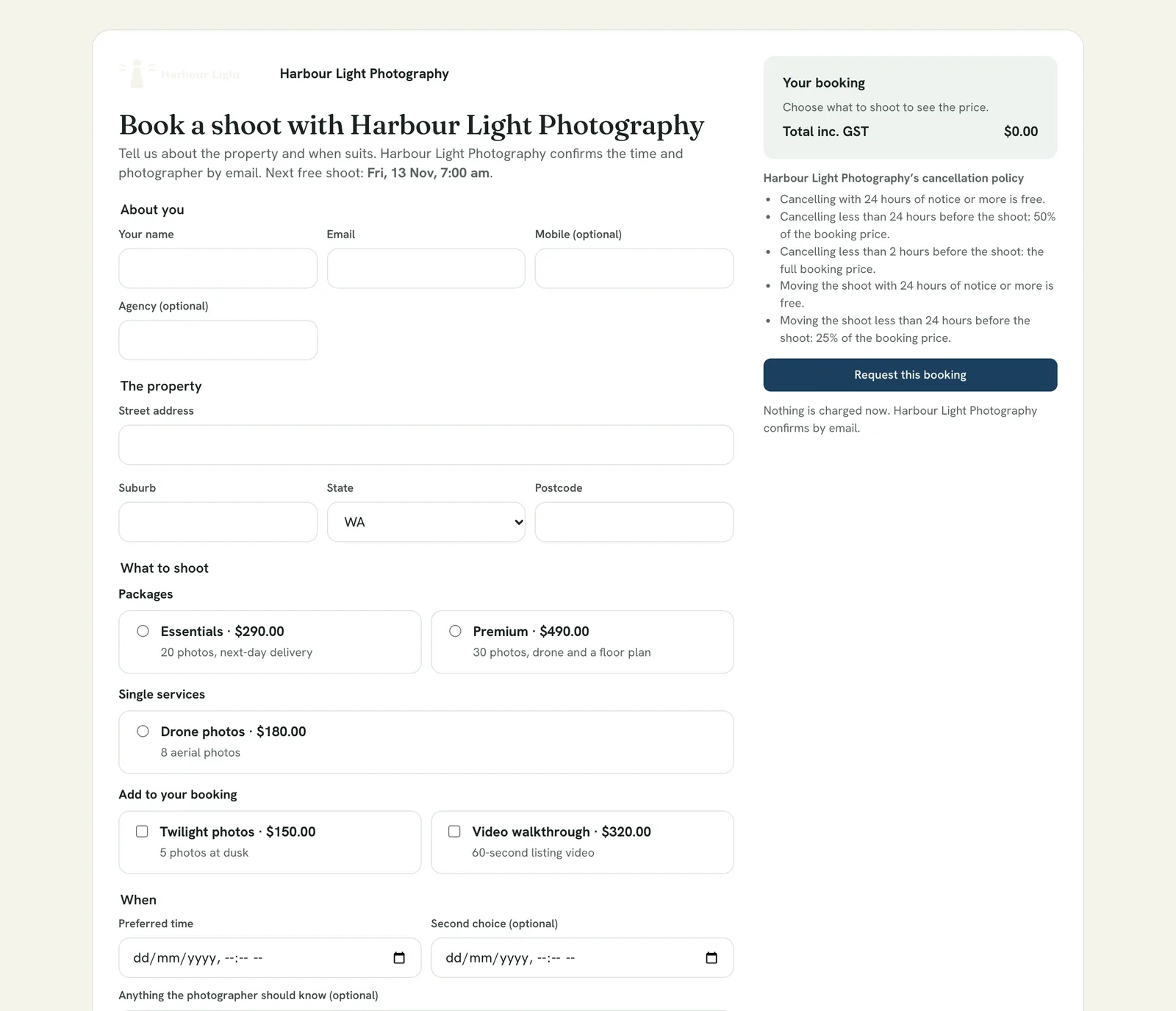
Every company has a booking page at realees.com/book/your-company. It needs no sign-in and shows your logo and colour, your services at your default prices, and your free times when you offer them.
Where to find it
Open Settings → Booking rules. Your booking page has the link with a Copy button.
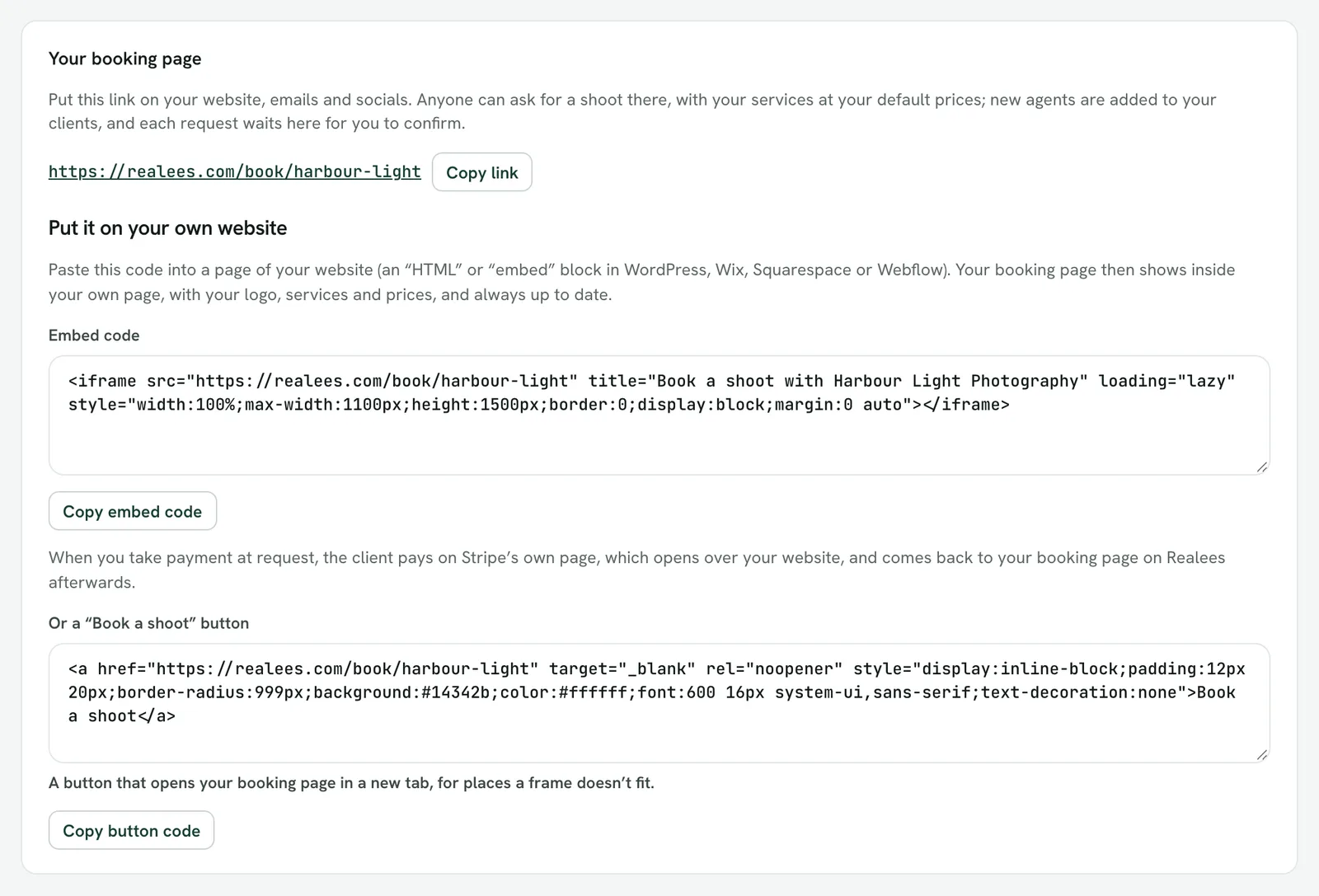
Put it on your website
- Embed code shows the booking page inside a page of your own website. Copy it and paste it into an "HTML" or "embed" block in WordPress, Wix, Squarespace or Webflow. It always shows your current services and prices.
- Button code is a "Book a shoot" button that opens the page in a new tab, for places a frame doesn't fit.
What a visitor fills in
Name, email, the property's address and what to shoot are always asked for. Tick the mobile number, the agency or the notes under Your booking page to make those required too.
What happens to a request
- It arrives as a Pending booking marked "Booking page request", for you to confirm: a stranger never books a photographer straight away.
- An existing agent is matched by email. A new one is added to your clients as an email-only agent.
- Once the address is complete the page shows any travel charge and weekend surcharge in the total, and your cancellation fees if you charge them.
Payment at request
Tick Ask for payment by card when a booking is requested. It works while your own Stripe account is connected (Settings → Integrations) and your invoice details are filled in. The request is invoiced at once and the visitor pays the full amount on Stripe's page. The booking still reaches you if they don't finish paying, and the emailed invoice carries the pay link. If you can't take the booking, refund it from its invoice.
On an embedded page, the visitor presses "Pay now by card" after the request; Stripe opens over the whole window and returns to your booking page on Realees.